
Collection & search
Your collection is your whole library of dances — every transcription you have typed in or brought in from elsewhere. This guide shows you how to browse and sort it, find exactly the dance you want (by words, by the moves it contains, or both), add and tidy up dances, and shape the list around how you work.
Finding your way around these words. On-screen buttons and screens are written in bold — like Collection, Filters, and New dance. The first time a dance term appears it links to the Glossary, so you can get a plain-language definition without losing your place.
If you are brand new here, start with the Getting started guide for a tour of the whole app, then come back for the details.
Browse and sort your dances
Collection is where the app opens. It shows your dances in a single scrolling list that stays fast no matter how large your library grows. Each row gives you the essentials at a glance:
- the dance title and its author or authors;
- an icon for the dance's type — contra, English, or square;
- a formation chip;
- status, level, and tag chips, when a dance carries them;
- how many times you have called it;
- a rating indicator, if you have rated the dance; and
- any custom fields you have chosen to show in the list (more on those under Make your own fields).
Select a tag chip on a row to show every dance with that tag. To choose which of these details appear on each row, open Settings → Defaults → Collection card fields.
The Collection screen with a search query, the Filters panel open, and matching dances visible.
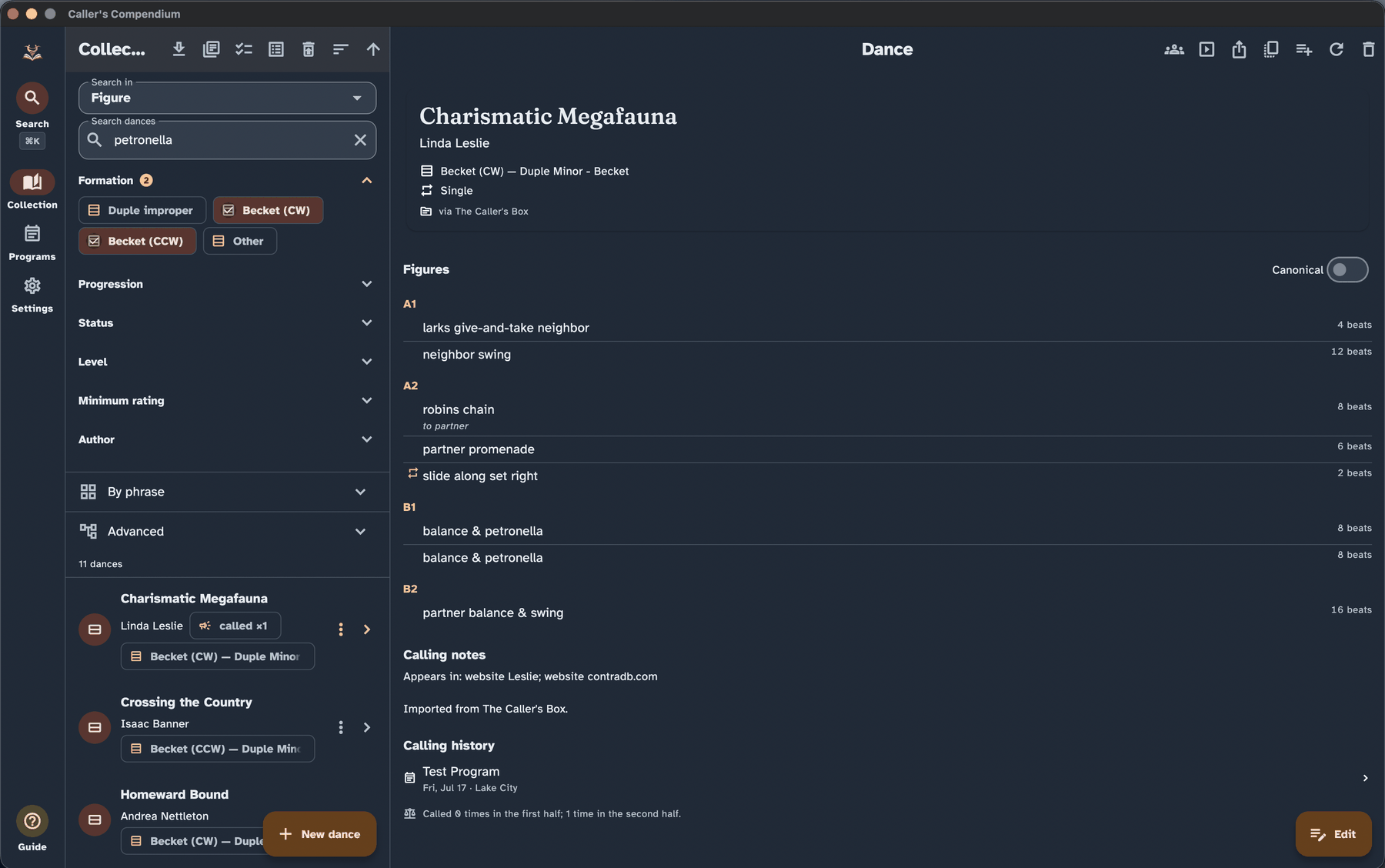
To change the order, open the Sort control at the top of the list. You can sort by:
- Title — alphabetical, ignoring a leading "The," "A," or "An," so The Nice Combination sorts under N, where you would look for it.
- Author — grouped by who wrote the dances.
- Recently added — newest additions first, handy just after an import.
- Last called — the dances you have programmed most recently, first.
- Best match — how well each dance matches your words. This one appears only while you have a plain-text search active (see below), and it is the order the app uses to put the strongest matches at the top.
The arrow button beside Sort flips between ascending and descending order. On a narrow screen, sorting and grouping are in the More actions menu instead.
If you use Device Sync and have connected a store, a Sync now button also sits in the Collection toolbar, so you can pull in a change from another device without leaving the page. It shows a spinner while a sync is running, and it is hidden while Device Sync is off.
To open a dance, select it. Its full detail view opens — on a phone as a new screen, and on a tablet or desktop in the pane beside the list. The dance detail view is covered further down.
Group by category (a dance's "vibe")
Many callers think of dances by their vibe — bouncy, flowy, glossy, connected — and organise a card box into those categories so they can jump to a "drawer" and hot-swap a dance mid-evening. Tags are exactly that in the app: give a dance one or more tags for its vibe or category, and they are ready to filter and group by.
You can also give a tag its own colour, under Settings → Appearance → Tag colours, so a category stands out on dance cards and in dance detail. Tags start with no colour and look exactly as they always have until you pick one, and the tag's name is always shown beside the colour, so nothing depends on being able to tell the colours apart.
Next to Sort is a Group by category control, which appears once you have tags. Pick one tag and the list splits into two labelled sections — the dances that carry that tag, then Other — so a whole category is together in one place. Your chosen Sort still orders the dances inside each section, and picking a dance behaves exactly as it does anywhere else in Collection (open it to read or perform; press and hold to select several). Choose No grouping to return to the flat list.
Grouping is for the current session only: it keeps out of your way next time you open the app, so you always start from your usual order and pick a category when you want one.
Search across your dances
The search bar sits at the top of Collection. Type any words — a title, an author, a phrase from the notes — and the list narrows as you type to the dances that match.
Search understands your dialect wording. If you saved or imported a dance in one set of words and search in another, the app still finds it: searching robins chain turns up the dance even if it was stored using different role names. You do not have to remember how a dance was originally written down.
Clear the search bar to return to your whole collection.
Use Search in to choose where your words are looked for: All fields, Title, Author, or Figure. All fields looks at titles, authors, sources, custom field values, hooks and notes, and finds your words exactly as they were typed; it also looks at figures, which are matched by meaning, so a role word finds the figure however the role was worded when the dance was entered. (Custom figure text saved before role words were rewritten may not match a role word until you save the dance again; see Write & edit dances.)
The same search bar can also search The Caller's Box or ContraDB directly: turn on Online search in the Advanced panel, and Search in offers Title, Author, and Figure. Author finds author names on The Caller's Box and choreographer names on ContraDB; Figure searches the dance figures on either one. A ContraDB Figure search needs a complete move name, such as box circulate — capitals and extra spaces do not matter, but a partial name will not work. The import guide covers online search step by step.
Narrow things down with filters
When you want to slice your library by its properties rather than by words, open the Filters panel. It lets you narrow by:
- Type and Formation
- Progression
- Status, Level, and Mixed level
- Mixer
- Minimum rating (for example, three stars and up)
- Calling history — dances you have Called, or Not called
- Author
- Tunes — see Filter by tunes below
- Tags — including Untagged, for dances that have no tags yet
- Source — the book or collection a dance was published in
- your own custom fields — the choice, yes/no, text, and number fields you have defined
A filter appears only when there is something to filter by — the Source filter, for example, appears once a dance cites a published source.
Two simple rules govern how filters combine, and knowing them makes the panel predictable:
- Within one filter, choices are "any." Ticking Improper and Becket under Formation finds dances in either formation. The one exception is Tunes, described below.
- Across different filters, choices are "all." Adding an author on top of those formations finds dances that match one of the formations and are by that author.
Filter by tunes
The Tunes filter finds dances by the suggested tunes you have saved on them — a key, a time signature, a tune name, or whatever you typed into the dance's Tunes list. It appears once at least one dance has a tune.
Type into the Tunes box. The app suggests tunes already in your collection; pick one, or press Enter to use exactly what you typed. Each value becomes a chip you can remove with its ×. A value matches any tune that contains it, ignoring upper and lower case, so dmaj finds Dmaj and Dmaj / Bmin.
Unlike the other filters, Tunes requires all of its chips. Entering Dmaj and 6/8 finds only dances that have both among their tunes — either as two separate tunes, or together in one, such as Dmaj 6/8. Like every other filter it also combines with the rest of the panel and the search bar, counts toward the number shown on the Filters header, and is cleared by Clear filters. A dance whose tunes the app cannot read never matches a Tunes filter.
Filters work alongside the search bar: whatever you type and whatever you tick apply together.
If the panel is longer than you need, hide the filters you never use under Settings → Defaults → Collection filters. Hiding a filter only removes it from the panel and clears anything you had selected in it; your dances are untouched. The same choice applies when you pick dances for a program.
Search by the moves a dance contains
Sometimes you are not looking for a title or an author — you are looking for a shape. Which of my dances have a petronella? Which put a chain right before a swing? Two tools answer questions like these.
Build a figure query with Advanced
Open the Advanced builder to ask about the figures — the moves — inside your dances. It works by stacking up rows and groups:
- Add a Has figure row and pick a move with the type-ahead field — start typing and choose from the matches.
- Optionally pin the move to a section (for example B2), so it only counts when it appears there.
- Optionally set the move's parameters to be more specific.
- Add a Sequence (then) to require one move right after another — "a chain then a swing."
Rows live inside groups set to All of, Any of, or None of — match every row, any row, or no row — and a Condition group can sit inside another, so you can express questions as detailed as you need.
The builder can also ask about your tags. Add a Has tag row and pick a tag from the list. Two Has tag rows inside an All of group find dances that carry both tags — something the Tags filter, which matches any of the tags you tick, cannot do. Tag rows sit alongside figure rows in the same group, so "tagged Smooth and has a petronella" is one query. Has tag appears in the Add menu once at least one of your dances has a tag.
Ask per phrase with By-Phrase search
If you think about dances the way The Caller's Box does — phrase by phrase — open the By phrase panel. For each phrase (A1, A2, B1, B2) you can require that certain moves are present ("figures match") or that certain moves are absent ("but do not match"). It is a quick way to say, for instance, "a swing in B1, but no hey anywhere in A."
Everything combines
You do not have to choose one search tool. The plain-text bar, the Filters panel, the Advanced builder, and the By phrase panel all apply together — a dance has to satisfy all of them to appear. As you narrow things down, the number of matching dances is announced to screen readers, so the result count is never hidden behind a visual-only cue.
Read a dance in detail
Selecting a dance opens its detail view — the full picture of a single dance.
The dance detail view with figures grouped into sections and a toggle between your dialect and neutral wording.
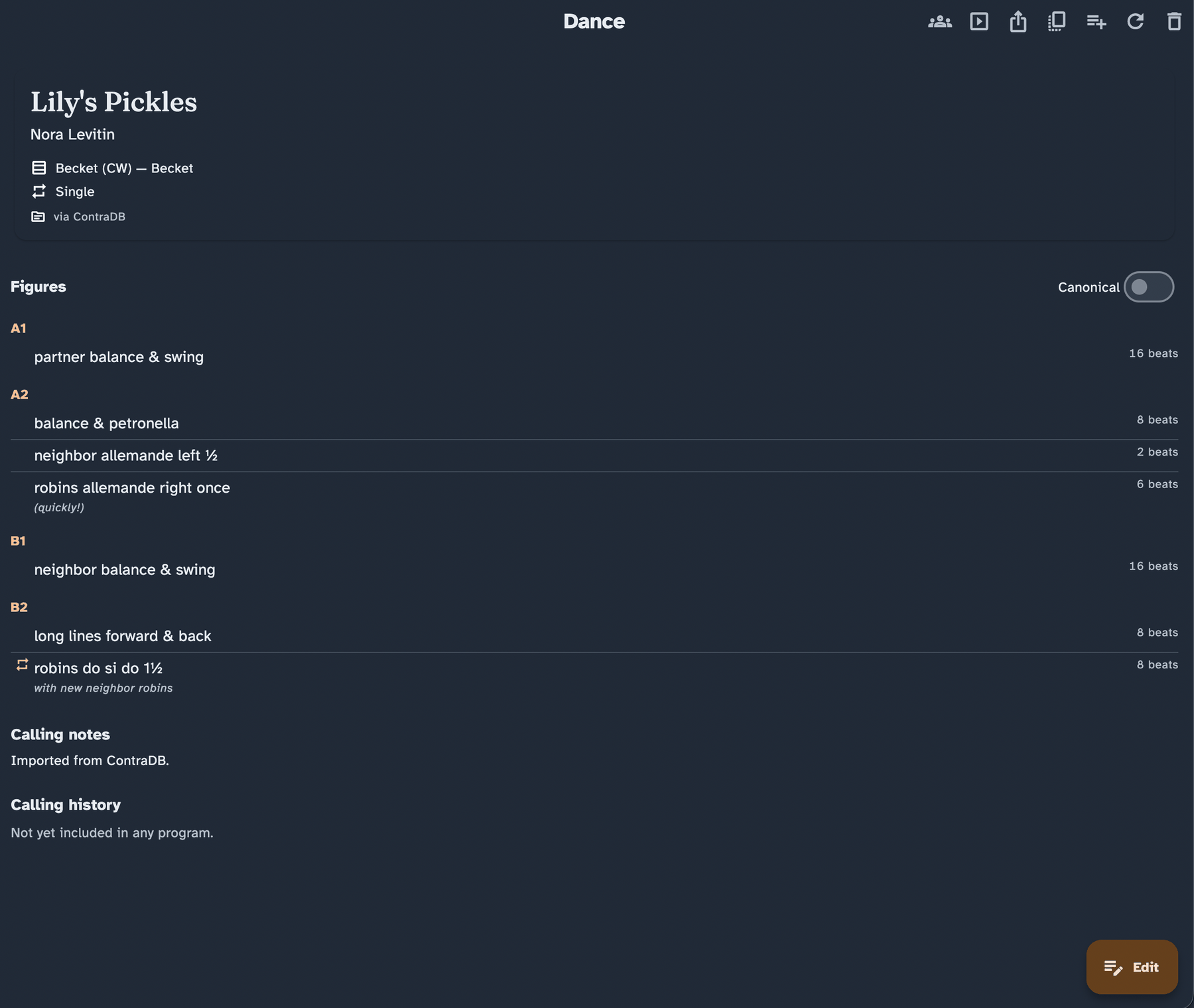
The detail view brings together:
- A header — title, authors, formation, and level, plus a status banner if the dance is flagged (for example, deprecated or broken).
- The figures, laid out by section (A1, A2, B1, B2), each with a beats column and a marker showing where the progression happens.
- Tags — select one to show every dance with that tag.
- A Canonical switch — flip between your dialect and the neutral, shared wording without changing the saved dance. It appears once you turn on Canonical figure text in Settings. See the Dialect guide for how this fits together.
- Calling notes, the choreographer's or your own.
- A Walkthrough — the step-by-step teaching notes you say while walking a dance through, kept separate from the shorter Calling notes. In the editor, Fill from snippets can build it from wording you have used for the same figures before — see Walkthrough.
- Tunes you like with the dance.
- Links — to the source, a video, and related dances.
- Calling history — which of your programs include this dance, and the venues where you have called it more than once. Settings decide whether this counts only slots you marked performed, or every program that contains the dance.
- Custom fields you have filled in.
- Published-source citation — the book and page a dance came from, when you have recorded it.
When a dance's notes mention another dance by name, that title becomes a link you can select to jump straight to it.
What you can do with a dance
From the detail view you can:
- Edit the dance.
- Re-import choreography from The Caller's Box, ContraDB, or a single-dance Caller's Compendium JSON file. You can also do this when you open a saved dance from Programs, from search, or from the results of an import.
- Duplicate it as a starting point for a variation.
- Add to program — drop it into a program you are building.
- Export it — share it as text or as a dance file, copy it, or print it as a PDF. The export follows your active dialect, so what you hand someone matches how they speak — see Share, print & export.
- Perform this dance — open it in Perform mode, the large-print calling view, to call it on its own.
- Delete dance — see Keep your collection tidy.
On a narrow screen, the less-used actions are in the More actions menu.
Add a dance
To put in a dance by hand, choose New dance. This opens the editor, where the title is the only required field. Figure entry is keyboard-first: start typing a move and accept a match from the type-ahead, with a running beat count keeping you honest as you go. If a move is unusual and nothing matches, type it in as free text — it is still recorded as a figure.
When you save, the dance is immediately selected in the detail pane so you can review it without having to find it in the list — on a tablet or desktop, where the list and detail pane are side by side. On a phone the editor closes and returns you to the list.
Write & edit dances is the full guide to the editor: figures, meanwhile groups, walkthroughs, credits, drafts, and undo. The Getting started guide walks through your first dance step by step. And if you already keep dances elsewhere, you will usually want to bring them in rather than retype them — see Imports & migration.
Make your own fields
Beyond the built-in details, you can track whatever matters to you — a tune suggestion, a "taught it at" note, a difficulty of your own. Choose Manage custom fields on the Collection page to create, edit, and delete your own fields.
A custom field can be a choice list, a yes/no switch, a text note, or a number. Once you define one, it:
- appears in the dance editor, ready to fill in;
- can show in the dance list, if you turn that on; and
- becomes a filter in the Filters panel.
A choice field is a handy home for a reusable pick-list you build up over time — for example the band adjectives you like to reach for (driving, lyrical, punchy). Define it once as a choice field and every dance draws from the same list, so the wording stays consistent and you can filter by it. You do not have to prepare the whole list up front: while editing a dance, use the + beside a choice field to add a new option on the spot, and it joins the shared list for next time.
A few properties lock once a field is in use on real dances, so the data you have already entered stays consistent. The app tells you which ones when you edit a field in use.
Keep your collection tidy
A growing library needs a little housekeeping, and every change here can be undone.
- Duplicate a dance to spin off a variation without disturbing the original.
- Add tags to a single dance from the actions menu on its row (the three vertical dots), without entering selection mode. You can pick existing tags or create new ones, and the change can be undone.
- Delete a dance and it is only soft-deleted — an Undo option appears right away, and the dance moves to a Recently Deleted area rather than vanishing.
- Restore or remove from Recently Deleted — bring a dance back, or delete it permanently when you are sure. Anything left there is purged automatically after 30 days; you can choose a longer window, or never, in Settings.
Change many dances at once
To organize in bulk, enter selection mode: choose Select dances, or long-press a row on a touchscreen. Tick as many dances as you like, then apply one change across all of them. Tags and level are on the toolbar; the rest are under More batch actions:
- Add tags or Remove tags.
- Set level, or clear it with Unspecified (clear).
- Set rating, or clear it with Unrated (clear).
- Add tunes — build a short list and add it to every selected dance — or Clear tunes, which asks you to confirm first.
- Edit custom field — set one of your fields to a value, or choose Clear this field.
Every batch change is announced to screen readers and can be undone, and the app tells you plainly when a change would affect nothing. Selected rows are marked with a checkmark and a highlight — never colour alone — so the selection is clear however you are reading the screen.
Jump straight to a dance or program
Anywhere in the app, the Search button — in the navigation rail on a wide screen, or in the app bar on a narrow one — or the keyboard shortcut Ctrl-K (Cmd-K on macOS) opens a single search box over whatever you are doing. Type, and matching Dances and Programs are listed in groups; choose one and you go straight there.
It searches titles across your collection and your programs, so it is the fastest way to reach a dance you can name. For searching inside dances — by move, by level, by tag — use the Collection search and filters above.
Where to go next
- Write and edit dances: Write & edit dances
- Build an evening from your dances: Programs & matrix
- Call a dance from the stage: Perform mode
- Bring in dances you already have: Imports & migration
- Hand a dance to someone else: Share, print & export
- Put the app in your own words: Dialect
- Keep your library safe and portable: Backup & portability · Settings
- Using assistive technology or large text? The Accessibility guide covers screen readers, text size, high contrast, and keyboard use.
Not sure what a word means? The Glossary has plain definitions for every term used across these guides.